
How to See The Number of Files in a Folder on A Mac
This post may contain affiliate links which means I make a commission if you shop through my links.
Disclosure Policy
Did you know that there is a simple way for you to see the number of files in every folder that you open on your Mac computer? This is information that you many not think you need, but once you have it turned on, you will appreciate it more than you think.
A bonus, is that not only will you see the number of files, you will also see the amount of available disk space on the disk that contains the folder you are looking at. This could be your internal hard drive, your Apple Cloud Drive, or an external drive.
I will walk you through the tutorial here.
Why This Information Is Helpful
Without going into too much detail, I will give you a few examples of how I use this information.
This week I was working on organizing my digital photos. I had a bunch of old photos stored on a cloud drive that I no longer use. So, I was downloading these to my computer for further processing. To make sure that I did not miss any photos, I simply checked the number of files in the cloud folder against the number of files in the folder I was using for these photo downloads on my Mac. It was a simple way to verify that I had not missed anything.
An easy way to “eyeball” it was to compare the total number of files in the old folder to the number of files in the new folder.
A second example, is from a time management perspective. I typically clean out my downloads folder on a regular basis, but I had gotten behind in my efforts. So, one day, I had a small block of time to spare. I took a look at the number of items in my downloads folder and immediately knew that there was too much for me to deal with in the time that I had available, so I chose to tackle a different project instead.
This little piece of information is useful to have and can aid in decision making without you even realizing it.
But how do you find this information?
I know my way around a Mac computer, but I couldn’t find the number of files in a folder on a Mac anywhere.
So, I did some research and figured it out – and decided to share it with you!
To View The Number of Files In A Folder Do This
If you have ever wondered how to view the number of files in a folder on a Mac, the process is really easy and this is how you do it using Finder.
1. Open a Finder Window
Open your folder in Finder (preferably the one that you want to know the count for).
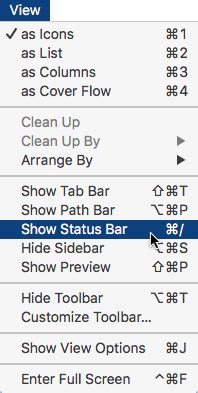
2. Click on View in the Menu Bar
In the top menu bar, click on the View option.
3. Click on Show Status Bar
In the dropdown menu that opens up, click on Show Status Bar.
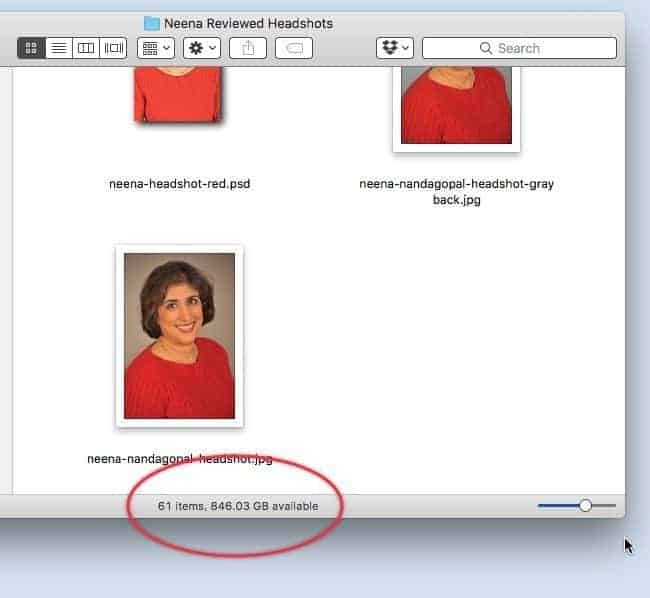
4. Look at the Bottom of Your Finder Window
Now at the bottom of your finder window, you should see a gray bar that tells you how many files or items are in that folder on your Mac. This will show on every Finder window that you open.
How To Turn It Off
If you don’t want to see the file count anymore, just reverse the process.
When you click on view in the menu bar now, the option in the dropdown menu has changed to “Hide Status Bar”.
Just click on this to turn it off.
More Technology Tips for You
I hope this technology tip makes your organizing your digital life a little easier. In my Digital Organization Guide, one point that I like to stress is that it important for you to know how to use the technology that you own. Being able to make full use of the features on all your devices can help to improve your personal productivity.
I have put together the following tutorials about features on Mac computers that have been helpful for me:
- Learn How to Take a Screenshot on a Mac
- How to Batch Rename Folders on a Mac
- How to Set Up the Right Click on a Mac
If this tutorial helped you out – please share!





Brilliant – a recent upgrade “deleted” or “changed my setup.” Your tip has removed my frustration!
Hi Paladin,
So happy to help!
Thank you! When I updated to Catalina, it disappeared from my Finder windows and it was super aggravating not seeing this info. So easy to do, thanks to your help.
Thanks!
Thanks!
You are welcome!
Thanks so much!
Thank you!!!
Gosh, I had looked in several menus already, without success. It’s incredible the time we can spend with apparently trivial stuff, arghhh!…
Hi Jose,
You are welcome! And I was just commenting the other day that technology is supposed to make life easier but honestly takes so much more time to figure out – so true!
Thank you
You are welcome!
This only works if you’re at the bottom of a folder. So if you’ve got multiple nested folders it still only shows the number of items.
For example, if I have a folder with 7 files and 7 folders, Finder will say there are 14 items. It doesn’t count anything inside the folders, which is very inconvenient.
Hi Keith,
Yes, you are right. Finder considers a nested folder to be an “item”. I rather like it this way because let’s say I had 7 files and 7 folders (14 items) but one of those 7 folders had 1000 items in it. If Finder counted all of the items inside the nested folders, then the top level folder would say 1014 items – but I would not know just by glancing which folder had all of the 1000 items.
Finder does, however, list the number of items in each folder right beneath the actual folder icon (in icon view) at the top level – which works for me.
I think it is all a matter of personal preference and how you base your workflow – so, for you it seems that having all the items listed at the top level would be useful.
Maybe in a future version of the Mac OS … 🙂
I had the same issue as Keith. Found if you type ‘files’ into the search bar, it will show all items excluding folders and then the item count as Neena showed above will be represtative.
I’m not trusting bridge to download all pictures these days.. be getting a pop up error part way through at random. Loved how, when it was working, I could pull from different cameras into the same folders by date. This page helped me confirm the count. Thanks Neena!